
字体配置——使用 JetBrains Mono
- 下载 Jetbrians Mono 字体:how-to-install
- 解压缩
- 安装
- Mac 下将 ttf 文件夹下的文件全选,右击选择打开,安装所有字体
- Centos9 下, 将 ttf 文件夹下的文件全部移动到
/usr/share/fonts/${newdir}下 ,yum install -y fontconfig并执行fc-cache。然后执行fc-list即可看到新的字体
- 搜索 font family,改成
'JetBrains Mono', Menlo, Monaco, 'Courier New', monospace。 - 搜索 font size,改成 13。如果这个字体还不够大,可以
command + +来放大 UI。 - 搜索 line height,改成 1.6。
TIPS:
- 建议打开 vscode 的配置同步功能。
- 本地的字体设置对远程开发同样生效。
快捷键配置
- 按
cmd+k,再按cmd+s,进入快捷键设置 - 点击右上角按钮进入原始文件
keybindings.json
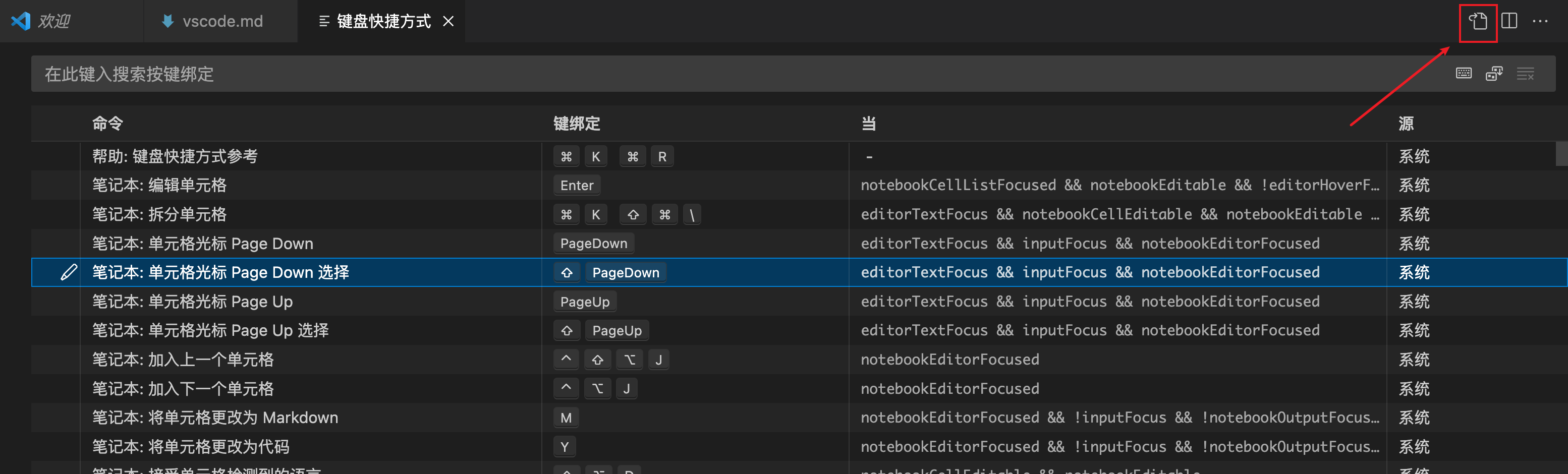
- 修改文件内容如下:
| 快捷键 | 作用 |
|---|---|
cmd+m |
用于切换多个终端,特别是在 cmd+shift+b 触发构建任务之后 |
option+o |
用于打开 remote explorer 窗口,在多个远程开发环境中切换 |
option+t |
用于打开 outline 窗口,用于查看大纲或者函数列表 |
cmd+k cmd+g |
用于查看 git log graph,需要 git graph 插件 |
cmd+k cmd+h |
查看方法的引用路径 |
macOS:
// 将键绑定放在此文件中以覆盖默认值auto[]
[
  {
    "key": "cmd+m",
    "command": "workbench.action.terminal.focusNext"
  },
  {
    "key": "alt+o",
    "command": "workbench.view.remote"
  },
  {
    "key": "alt+t",
    "command": "outline.focus"
  },
  {
    "key": "cmd+k cmd+g",
    "command": "git-graph.view" // 需要git-graph插件
  },
  {
    "key": "cmd+k cmd+h",
    "command": "references-view.showCallHierarchy",
    "when": "editorHasCallHierarchyProvider"
  },
  {
    "key": "shift+alt+h",
    "command": "-references-view.showCallHierarchy",
    "when": "editorHasCallHierarchyProvider"
  },
  {
    "key": "cmd+j",
    "command": "workbench.action.terminal.toggleTerminal",
    "when": "terminal.active"
  },
  {
    "key": "ctrl+`",
    "command": "-workbench.action.terminal.toggleTerminal",
    "when": "terminal.active"
  },
  {
    "key": "ctrl+shift+alt+`",
    "command": "-workbench.action.terminal.newInNewWindow",
    "when": "terminalHasBeenCreated || terminalProcessSupported"
  },
  {
    "key": "cmd+k cmd+j",
    "command": "workbench.action.createTerminalEditorSide",
    "when": "terminalProcessSupported"
  },
  {
    "key": "shift+enter",
    "command": "workbench.action.terminal.sendSequence",
    "args": {
      "text": "\u001b\r"
    },
    "when": "terminalFocus"
  }
]
windows:
// 将键绑定放在此文件中以覆盖默认值
[
  {
    "key": "ctrl+m",
    "command": "workbench.action.terminal.focusNext"
  },
  {
    "key": "alt+t",
    "command": "outline.focus"
  },
  {
    "key": "ctrl+k ctrl+g",
    "command": "git-graph.view" // 需要git-graph插件
  },
  {
    "key": "ctrl+k ctrl+h",
    "command": "references-view.showCallHierarchy",
    "when": "editorHasCallHierarchyProvider"
  },
  {
    "key": "shift+alt+h",
    "command": "-references-view.showCallHierarchy",
    "when": "editorHasCallHierarchyProvider"
  },
  {
    "key": "alt+o",
    "command": "workbench.view.remote"
  },
  {
    "key": "ctrl+j",
    "command": "workbench.action.terminal.toggleTerminal",
    "when": "terminal.active"
  },
  {
    "key": "ctrl+oem_3",
    "command": "-workbench.action.terminal.toggleTerminal",
    "when": "terminal.active"
  },
  {
    "key": "ctrl+k ctrl+j",
    "command": "workbench.action.createTerminalEditorSide",
    "when": "terminalProcessSupported"
  },
  {
    "key": "shift+enter",
    "command": "workbench.action.terminal.sendSequence",
    "args": {
      "text": "\u001b\r"
    },
    "when": "terminalFocus"
  }
]
其他快捷键
| 作用 | MacOS 快捷键 | Windows 快捷键 | 备注 |
|---|---|---|---|
| Expand / shrink selection | ⌃⇧⌘ → / ← | Shift+Alt+→ / ← | |
| Go to Line… | ⌃G | Ctrl+G | |
| Change language mode | ⌘K M | Ctrl+K M | |
| Go back / forward | ⌃- / ⌃⇧- | Alt+ ← / → | |
| Toggle word wrap | ⌥Z | alt + z | |
| 打开 copilot chat | ⌃⌘I | ctrl+alt+i | 需要 copilot chat 插件 |
| 打开copilot edit,根据 prompt 修改多个文件 | ⇧⌘I | ctrl+shift+i | 需要 copilot chat 插件 |
| 新建 copilot chat | ⌃l | ctrl + l | 需要 copilot chat 插件 |
| Delete line | ⇧⌘K | Ctrl+Shift+K | |
| 向下复制一行 | ⌥⇧⬇️ | shift+alt+⬇️ |
内置快捷键 cheatsheet
远程开发
- 安装
Remote-ssh插件。 - 使用 ssh 连接到远程服务器。推荐配置是 2C2G 以上。为了让远程服务器流畅连接网络,使用了 clash 做分流,并将 clash 作为系统代理。
- 也可以在 ssh config 中增加
RemoteForward 7890 localhost:7890使用本地的 clash 作为代理。
- 也可以在 ssh config 中增加
- 历史记录保存在
~/.ssh/config中。
ssh 到 windows 上使用 WSL 开发
我的 WSL 工作在镜像网络模式下,所以在设置-远程的配置文件中设置不自动端口转发:
{
  "remote.autoForwardPorts": false
}
我有时会 ssh 到 windows 上的 WSL 远程开发,不自动转发也不方便,折衷的方式是在 ssh 的配置文件中增加一个端口转发,从而在 ssh 中实现端口转发,在 wsl 中不端口转发。
LocalForward 7788 192.168.5.127:7788
使用 socat 作为 ProxyCommand,用 http 代理连接 ssh 服务器
Host *.arloor.*
  ProxyCommand socat - PROXY:localhost:%h:%p,proxyport=6152
这使用了 surge 进行代理连接。注意,每次增加 vscode 的 ssh 服务器列表时,vscode 都会把 proxyport=6152 改成 proxyport 6152,需要手动改回来。
对应的 surge 规则是:AND,((PROCESS-NAME,*socat*), (DEST-PORT,22), (DOMAIN-KEYWORD,arloor,extended-matching)),家里
ssh 到 macOS 上远程开发
要 ssh 到 macOS 上进行远程开发,需要额外的命令:
xcode-select --install # 安装 LLDB.framework
sudo DevToolsSecurity --enable # 永久允许Developer Tools Access 附加到其他进程上,以进行debug
sudo security authorizationdb write system.privilege.taskport.debug allow # 允许remote-ssh调试进程。解决报错:this is a non-interactive debug session, cannot get permission to debug processes.
其实第三个命令就是对第二个命令的补充。他们操作的都是 rights definition for: system.privilege.taskport.debug。可以执行下面两条命令来验证,可以发现就是打印格式不同,内容是一样的。
sudo DevToolsSecurity -status -verbose
sudo security authorizationdb read system.privilege.taskport.debug
参考文档:
- Debugging with LLDB-MI on macOS
- Unable to debug after connecting to macOS via “Remote - SSH” 解决报错:this is a non-interactive debug session, cannot get permission to debug processes.
如果每次 ssh 到 macOS 都需要输入密码,设置公钥就行:
echo ssh-rsa xxxxxxxx not@home > ~/.ssh/authorized_keys
ssh 到 windows 上远程开发
参考Windows11启用openssh,安装Windows上的openssh server,之后就可以连上Windows了。
问题:第二次连接时报 bash 的 os error 1920
如果通过 VS Code 连上 Windows 后,第一次连接正常,第二次连接却失败,并且出现下面的错误:
无法连接到远程扩展主机服务器 (错误: CodeError(CommandFailed { command: "bash", code: -1, output: "系统无法访问此文件。 (os error 1920)" }))
原因是 VS Code 1.131.0 的远端 CLI 在 Windows 上启动 Code Server 时已经使用了 cmd /Q /C,但是在“Code Server 已经运行,再次安装默认远端扩展”这条路径中仍然执行:
capture_command("bash", &["-c", &command])
第二次连接会复用运行中的 Server,正好进入这条路径。Windows 随后尝试启动 bash,如果命中不可访问的 WindowsApps App Execution Alias,就会返回 os error 1920。
相关链接:
- Cannot re-connect to windows host
- VS Code 修复 PR:Use platform-specific command for extension installation
- 出问题时的 code_server.rs
下面有三种解决方案。
方案一:关闭 Exec Server
这是最简单的临时方案,在 VS Code settings.json 中加入:
{
  "remote.SSH.useExecServer": false,
  "remote.SSH.useLocalServer": true
}
remote.SSH.useExecServer:控制是否在远端启动轻量的 Exec Server,再由它管理 Code Server;这里将它关闭以绕过有问题的路径。remote.SSH.useLocalServer:在本地启动进程管理 SSH 连接,可以跨窗口复用连接信息。
这个方案不需要修改 Windows 远端,但会退回旧的连接管理方式。
方案二:不自动安装默认远端扩展
如果希望继续使用 Exec Server,可以清空 Remote SSH 的默认远端扩展列表:
{
  "remote.SSH.defaultExtensions": []
}
这样第二次连接时没有需要安装的默认扩展,CLI 会跳过有问题的 bash -c 调用。代价是不能再通过这个配置自动安装默认扩展,需要在远端手动安装和维护扩展。
方案三:安装受限的 bash.exe shim
如果既希望保留 Exec Server,也希望继续使用 remote.SSH.defaultExtensions,可以在 Windows 的 .vscode-server 目录放置一个名为 bash.exe 的小型兼容程序。
Windows 创建无路径的进程时,会优先搜索调用程序所在目录。远端 CLI 位于:
C:\Users\<用户名>\.vscode-server\code-<commit>.exe
因此 CLI 调用 bash 时,会先找到同目录的 .vscode-server\bash.exe,而不是 PATH 中不可访问的 WindowsApps 别名。可执行文件搜索顺序参见 Microsoft CreateProcess 文档。
这个 shim 不是真正的 Bash,也不是通用的 Bash 到 CMD 转换器。它只接受下面这种调用:
bash.exe -c "C:\Users\<用户名>\.vscode-server\cli\servers\<任意版本>\server\bin\code-server.cmd --install-extension=<扩展ID> ..."
校验通过后,它将命令转换成:
cmd.exe /D /Q /C code-server.cmd --install-extension=...
Rust 源码如下:
use std::env;
use std::process::{exit, Command};

const VERSION: &str = "vscode-remote-bash-shim 2";
const SERVER_SCRIPT_SUFFIX: &str = "\\server\\bin\\code-server.cmd";
const INSTALL_PREFIX: &str = "--install-extension=";

fn fail(message: &str, code: i32) -> ! {
    eprintln!("{VERSION}: {message}");
    exit(code);
}

fn valid_extension_flag(flag: &str) -> bool {
    let Some(value) = flag.strip_prefix(INSTALL_PREFIX) else {
        return false;
    };

    !value.is_empty()
        && value.chars().all(|character| {
            character.is_ascii_alphanumeric()
                || matches!(character, '.' | '-' | '_' | '@')
        })
}

fn valid_server_script(script: &str) -> bool {
    let Ok(user_profile) = env::var("USERPROFILE") else {
        return false;
    };

    let normalized_profile = user_profile
        .replace('/', "\\")
        .trim_end_matches('\\')
        .to_ascii_lowercase();
    let normalized_script = script.replace('/', "\\").to_ascii_lowercase();
    let servers_prefix = format!("{normalized_profile}\\.vscode-server\\cli\\servers\\");

    let Some(relative_script) = normalized_script.strip_prefix(&servers_prefix) else {
        return false;
    };
    let Some(server_directory) = relative_script.strip_suffix(SERVER_SCRIPT_SUFFIX) else {
        return false;
    };

    !server_directory.is_empty()
        && !server_directory.contains('\\')
        && !server_directory.contains('/')
}

fn main() {
    let args: Vec<String> = env::args().skip(1).collect();

    if args.len() == 1 && args[0] == "--vscode-remote-shim-version" {
        println!("{VERSION}");
        return;
    }

    if args.len() != 2 || args[0] != "-c" {
        fail("only the VS Code Remote SSH `bash -c` invocation is supported", 64);
    }

    let mut command_parts = args[1].split_ascii_whitespace();
    let Some(script) = command_parts.next() else {
        fail("the command is empty", 64);
    };

    if !valid_server_script(script) {
        fail("refusing a script outside the VS Code server directory", 64);
    }

    let extension_flags: Vec<&str> = command_parts.collect();
    if extension_flags.is_empty() || !extension_flags.iter().all(|flag| valid_extension_flag(flag)) {
        fail("only --install-extension=<id> arguments are permitted", 64);
    }

    let status = Command::new("cmd.exe")
        .args(["/D", "/Q", "/C"])
        .arg(script)
        .args(extension_flags)
        .status()
        .unwrap_or_else(|error| fail(&format!("failed to start cmd.exe: {error}"), 1));

    exit(status.code().unwrap_or(1));
}
在 Windows 上将源码保存为 vscode-remote-bash-shim.rs,然后编译并安装:
rustc --edition 2024 -O -C target-feature=+crt-static `
  -o "$HOME\vscode-remote-bash-shim.exe" `
  "$HOME\vscode-remote-bash-shim.rs"

$target = "$HOME\.vscode-server\bash.exe"
if (Test-Path -LiteralPath $target) {
    Copy-Item -LiteralPath $target -Destination "$target.backup"
}
Copy-Item -LiteralPath "$HOME\vscode-remote-bash-shim.exe" -Destination $target -Force

& $target --vscode-remote-shim-version
输出应该是:
vscode-remote-bash-shim 2
重新连接两次。第二次连接的 Remote SSH 日志应当包含:
Found running server - short-circuiting install
[server] Found running server
[server] Installing extensions...
Opening exec server for ssh-remote+windows
Verified and reusing cached exec server for ssh-remote+windows
同时不再出现 CommandFailed 或 os error 1920。
需要回滚时,不要直接删除,可以先重命名:
Rename-Item -LiteralPath "$HOME\.vscode-server\bash.exe" -NewName "bash.exe.disabled"
上游修复进入当前使用的 VS Code 稳定版后,可以禁用这个 shim;修复后的 CLI 会直接使用 Windows 的 cmd /Q /C,不再调用 bash -c。
卸载远程服务器 vscode server
这个比想象的更加常用,因为在大型的项目中,符号跳转经常导致 CPU 占用很高并且无响应
- 执行命令
Remote-SSH: Uninstall VS Code Server from Host不推荐,实测没有卸载干净 - 或手动执行
Linux/macOS:
cat > /usr/local/bin/killcode <<\EOF
# Kill server processes
kill -9 $(ps aux | grep vscode-server | grep $USER | grep -v grep | awk '{print $2}')
# Delete related files and folder
rm -rf $HOME/.vscode-server # Or ~/.vscode-server-insiders
EOF
chmod +x /usr/local/bin/killcode
killcode
Windows PowerShell:幂等写入到 $HOME\Documents\WindowsPowerShell\Microsoft.PowerShell_profile.ps1,之后新开的 Windows PowerShell 会话可以直接执行 killcode。如果使用 PowerShell 7,可以把 $profilePath 改成 $PROFILE.CurrentUserCurrentHost。
$profilePath = Join-Path $HOME "Documents\WindowsPowerShell\Microsoft.PowerShell_profile.ps1"
$profileDir = Split-Path -Parent $profilePath
New-Item -ItemType Directory -Path $profileDir -Force | Out-Null

$killcodeBlock = @'
# >>> killcode >>>
function killcode {
    Get-CimInstance Win32_Process |
        Where-Object { $_.CommandLine -and $_.CommandLine -like "*vscode-server*" } |
        ForEach-Object {
            Stop-Process -Id $_.ProcessId -Force -ErrorAction SilentlyContinue
        }

    Remove-Item -LiteralPath "$HOME\.vscode-server" -Recurse -Force -ErrorAction SilentlyContinue
    Remove-Item -LiteralPath "$HOME\.vscode-server-insiders" -Recurse -Force -ErrorAction SilentlyContinue
}
# <<< killcode <<<
'@

$pattern = '(?ms)^# >>> killcode >>>\r?\n.*?^# <<< killcode <<<\r?\n?'
$profileContent = ""
if (Test-Path -LiteralPath $profilePath) {
    $profileContent = Get-Content -LiteralPath $profilePath -Raw
}

$profileContent = [regex]::Replace($profileContent, $pattern, '')

$tokens = $null
$errors = $null
$profileAst = [System.Management.Automation.Language.Parser]::ParseInput($profileContent, [ref]$tokens, [ref]$errors)
$killcodeFunctions = $profileAst.FindAll({
    param($ast)
    $ast -is [System.Management.Automation.Language.FunctionDefinitionAst] -and $ast.Name -eq "killcode"
}, $true) | Sort-Object { $_.Extent.StartOffset } -Descending

foreach ($killcodeFunction in $killcodeFunctions) {
    $profileContent = $profileContent.Remove(
        $killcodeFunction.Extent.StartOffset,
        $killcodeFunction.Extent.EndOffset - $killcodeFunction.Extent.StartOffset
    )
}

$profileContent = $profileContent.TrimEnd() + [Environment]::NewLine + [Environment]::NewLine + $killcodeBlock + [Environment]::NewLine
Set-Content -LiteralPath $profilePath -Value $profileContent -Encoding UTF8
Rust 开发
安装四个插件:
| 插件名 | 说明 |
|---|---|
| rust-analyzer | rust 插件 |
| codelldb | 调试插件 |
| tamasfe.even-better-toml | toml 格式化 |
| fill-labs.dependi | crate.io 插件 自动检查依赖有没有更新 |
运行方式 1:使用 codelldb 的 cargo 支持直接 cargo build/test
只需要一个 launch.json 文件即可。
{
  // 使用 IntelliSense 了解相关属性。
  // 悬停以查看现有属性的描述。
  // 欲了解更多信息,请访问: https://go.microsoft.com/fwlink/?linkid=830387
  "version": "0.2.0",
  "configurations": [
    {
      "type": "lldb",
      "request": "launch",
      "name": "Debug rust_http_proxy",
      "cwd": "${workspaceFolder}",
      "terminal": "integrated",
      // https://github.com/vadimcn/codelldb/blob/v1.10.0/MANUAL.md#rust-language-support
      "cargo": {
        // build/test命令
        "args": [
          "build",
          "--bin=rust_http_proxy",
          "--package=rust_http_proxy"
          // "--features",
          // "bpf",
          // "--features",
          // "jemalloc",
          // "--no-default-features",
          // "--features","aws_lc_rs",
          // "--features","pnet",
        ],
        "env": {
          "RUST_BACKTRACE": "1"
        },
        "problemMatcher": "$rustc", // Problem matcher(s) to apply to cargo output.
        "filter": {
          "kind": "bin",
          "name": "rust_http_proxy"
        }
      },
      "sourceLanguages": ["rust"], // 指定源代码语言为 Rust
      "args": [
        // 传递参数
        "-p",
        "7788"
      ],
      "env": {
        "HOSTNAME": "test"
      }
    }
  ]
}
运行方式 2:tasks.json + launch.json
配置默认 build 任务:.vscode/tasks.json
{
  "version": "2.0.0",
  "tasks": [
    {
      "type": "cargo",
      "command": "build",
      "problemMatcher": ["$rustc"],
      "args": [
        // "-p",
        // "rust_http_proxy",
      ],
      "group": {
        "kind": "build",
        "isDefault": true
      },
      "label": "rust: cargo build",
      "presentation": {
        "reveal": "silent"
      }
    }
  ]
}
配置调试任务 .vscode/launch.json
{
  // 使用 IntelliSense 了解相关属性。
  // 悬停以查看现有属性的描述。
  // 欲了解更多信息,请访问: https://go.microsoft.com/fwlink/?linkid=830387
  "version": "0.2.0",
  "configurations": [
    {
      "type": "lldb",
      "request": "launch",
      "name": "Debug",
      // https://github.com/vadimcn/codelldb/blob/v1.10.0/MANUAL.md#rust-language-support
      // 虽然lldb支持cargo build,但是restart debug不会重新编译代码,所以不用。见https://github.com/vadimcn/codelldb/issues/988
      "sourceLanguages": ["rust"],
      // https://code.visualstudio.com/docs/editor/variables-reference
      "program": "${workspaceFolder}/target/debug/${workspaceFolderBasename}",
      "args": [],
      "cwd": "${workspaceFolder}",
      "console": "internalConsole",
      "preLaunchTask": "${defaultBuildTask}",
      "env": { "port": "80" }
    }
  ]
}
Python 开发
python 插件
| 插件名 | 说明 |
|---|---|
| ms-python.python | python 插件 |
| ms-python.vscode-pylance | python 语言服务 |
| ms-python.debugpy | python 调试插件 |
| ms-python.pylint | python lint 插件 我没装这个插件,因为 pylance 已经有 lint 了 |
settings
    "python.analysis.inlayHints.callArgumentNames": "all",
    "python.analysis.inlayHints.functionReturnTypes": true,
    "python.analysis.inlayHints.variableTypes": true,
    "python.analysis.autoFormatStrings": true,
    "python.languageServer": "Pylance"
venv
python3 -m venv venv
source venv/bin/activate
pip3 install -r requirements.txt
按cmd + shift + p,然后输入select interpreter,最后选择 venv 中的 python 解释器地址即可。
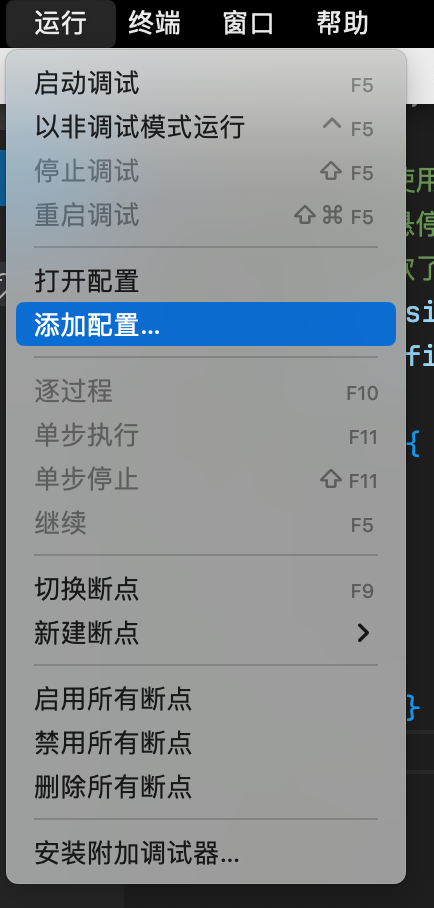
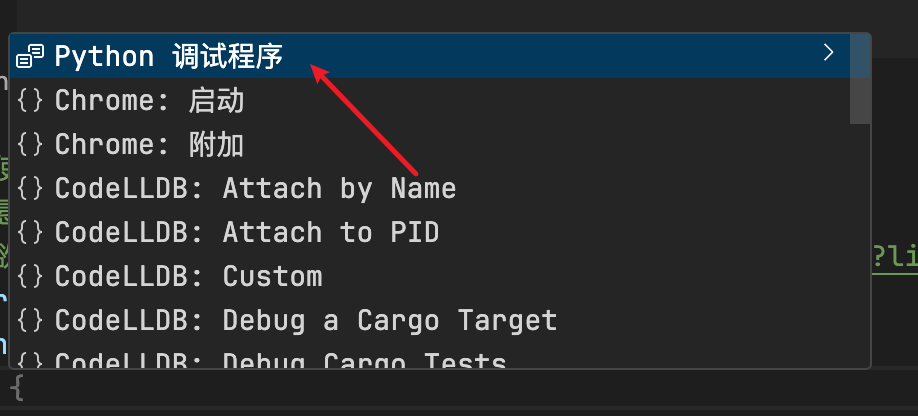
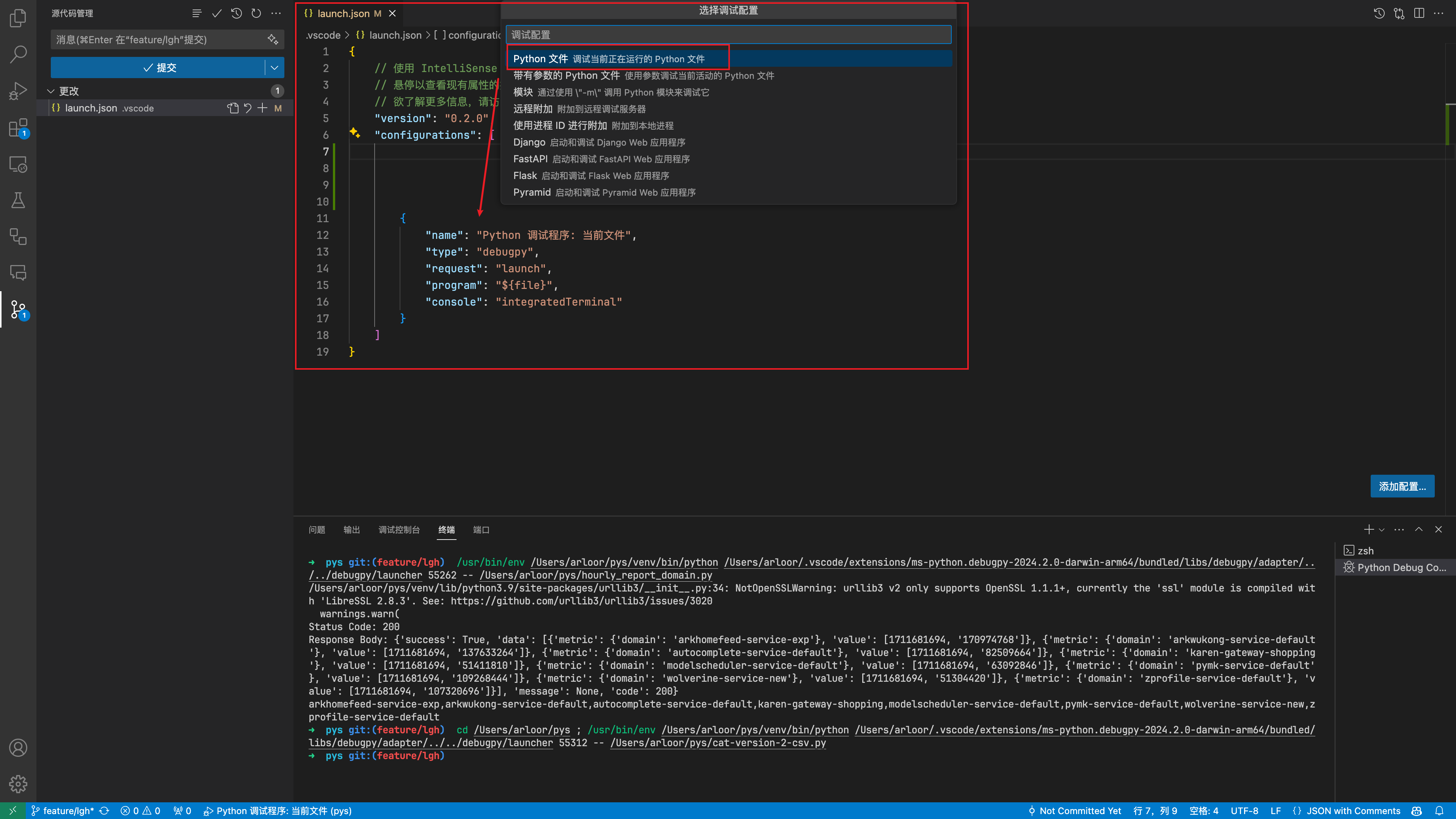
配置 python 调试任务
integrated terminal
我在远程开发时经常遇到重新连接远程机器时,集成 terminal 没有正常初始化,表现为 shell 标记旁边出现黄色感叹号。参考Terminal Shell Integration,发现需要关闭“自动脚本注入”,选择手动开启。具体操作是:
- 按
cmd + ,打开设置,不勾选下面的选项。对应 settings.json 中的配置是"terminal.integrated.shellIntegration.enabled": false

- 在 zshrc 中手动开启集成 terminal
Linux 上
if ! grep TERM_PROGRAM ~/.zshrc;then
  echo '[[ "$TERM_PROGRAM" == "vscode" ]] && . "$(code --locate-shell-integration-path zsh)"' >> ~/.zshrc
fi
MacOS 上:
if ! grep TERM_PROGRAM ~/.zshrc;then
  echo '[[ "$TERM_PROGRAM" == "vscode" ]] && . "$(/Applications/Visual\ Studio\ Code.app/Contents/Resources/app/bin/code --locate-shell-integration-path zsh)"' >> ~/.zshrc
fi
- 在 windows pwsh 上手动开启集成 terminal
if ($env:TERM_PROGRAM -eq "vscode") { . "$(code --locate-shell-integration-path pwsh)" }
文件自动保存+自动格式化
files.autoSave 设置成延迟时,自动 format 无效
{
  "editor.formatOnSave": true,
  "files.autoSave": "onFocusChange"
}
操作系统设置
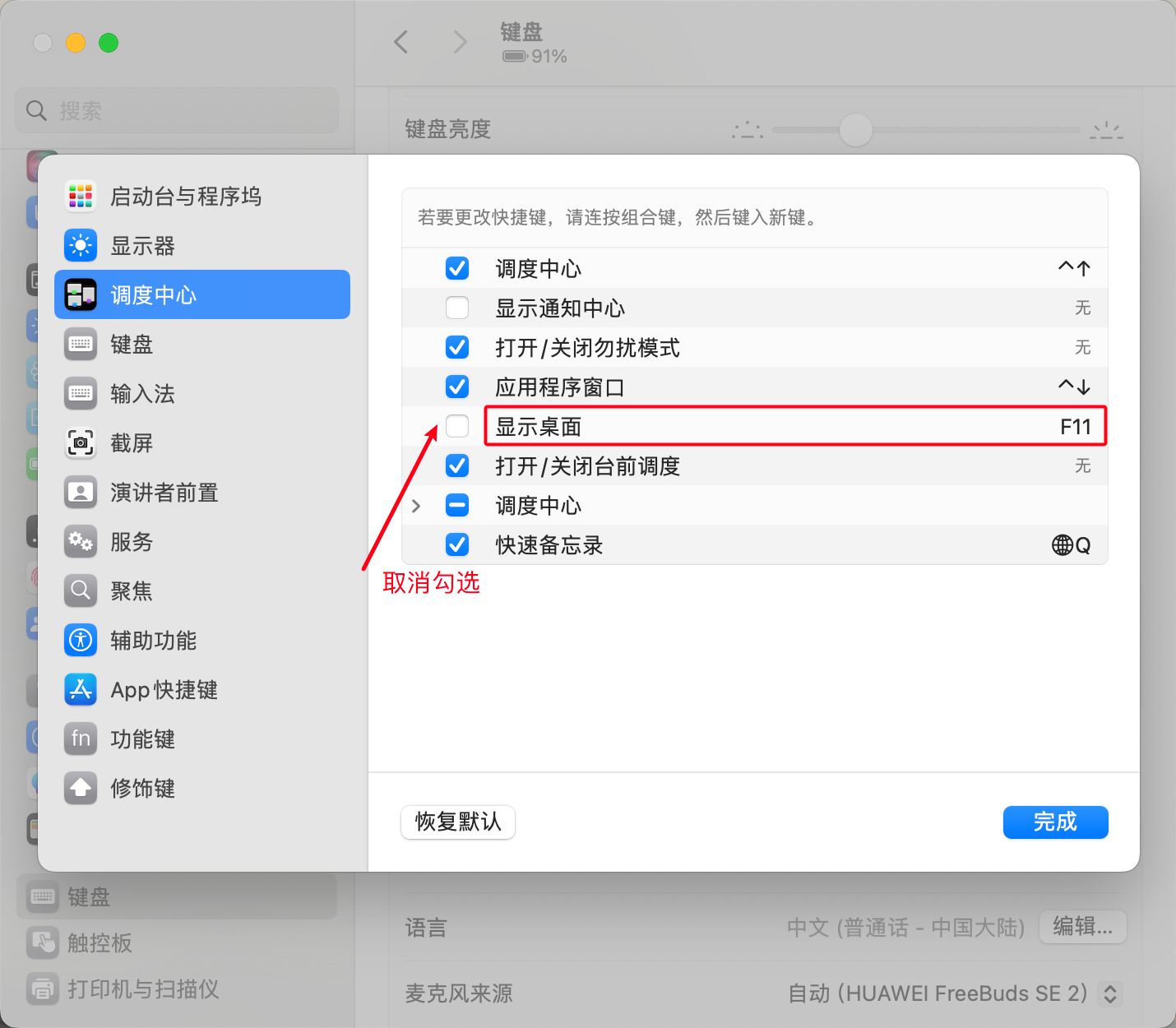
macOS 解除 F11 的快捷键的占用
设置 -> 键盘 -> 键盘快捷键
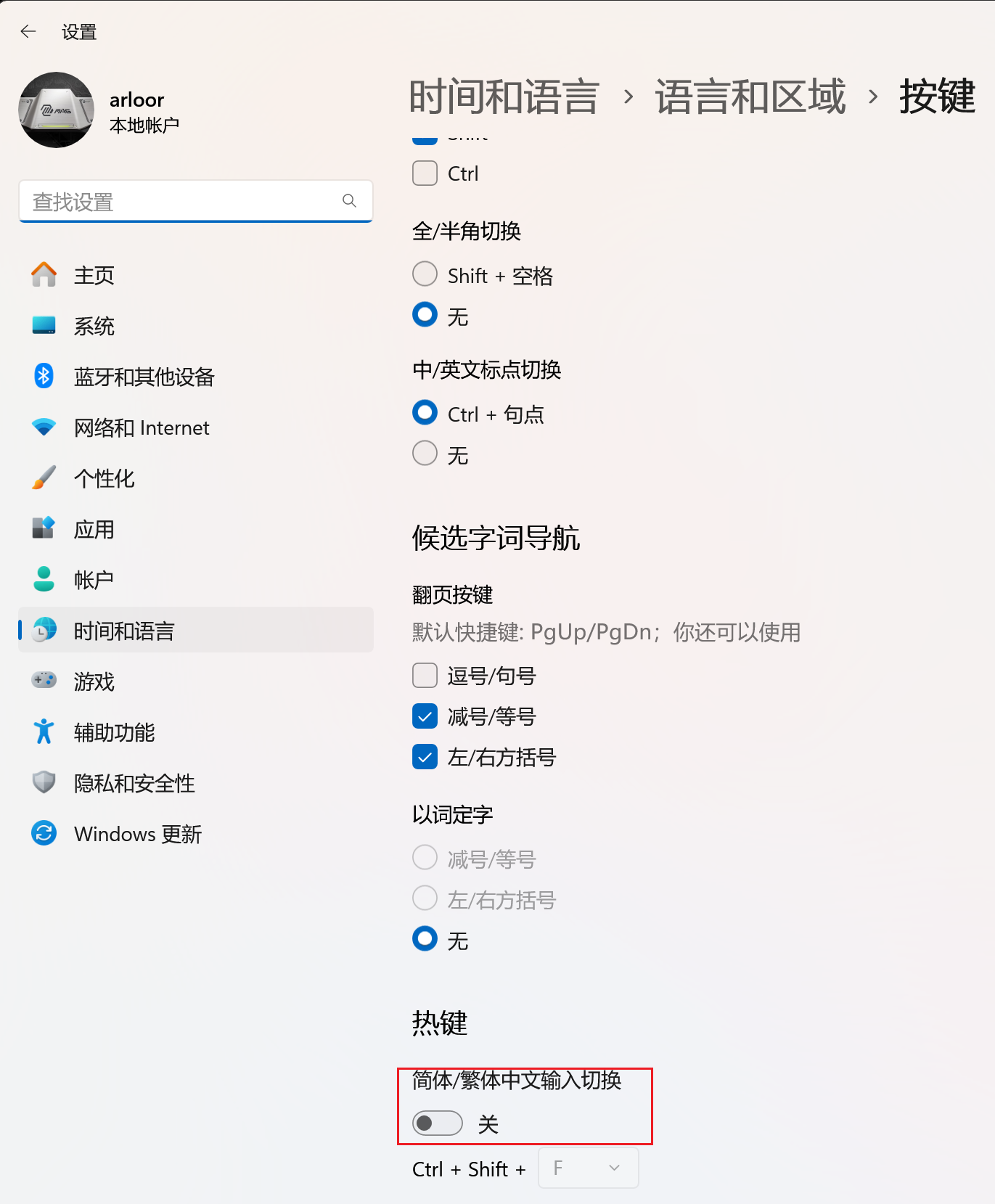
Windows 关闭简体中文输入法的简体繁体切换
不然会占用 ctrl + shift + F
其他插件
Git 插件
我没有用GitLens,而是参考VSCode 或许不需要 GitLens用了下面的插件
| 插件名 | 说明 |
|---|---|
| Git Graph | cmd + shift + p输入git log可以看完整提交历史 |
| Git Graph 新版 | cmd + shift + p输入git log可以看完整提交历史 |
| GitBlame | 显示每行是谁在什么时候修改的。PS:vscode 1.96 内置了 git blame 的能力,这个插件可以卸载了,启用方式见:November 2024 (version 1.96) |
并且为这些插件做了些配置变更:
{
  "gitblame.inlineMessageEnabled": true,
  "gitblame.inlineMessageFormat": "${author.name}, (${time.ago}) · ${commit.summary}",
  "git-graph.commitDetailsView.location": "Docked to Bottom",
  "git-graph.date.format": "ISO Date & Time"
}
我的 vscode 配置备份
{
  "editor.unicodeHighlight.nonBasicASCII": false,
  "editor.fontSize": 14,
  "editor.fontFamily": "'JetBrains Mono', Menlo, Monaco, 'Courier New', monospace",
  "editor.lineHeight": 1.6,
  "editor.fontLigatures": false,
  "editor.fontVariations": false,
  "terminal.integrated.defaultProfile.linux": "zsh",
  "git.enableSmartCommit": true,
  "git.confirmSync": false,
  "update.showReleaseNotes": false,
  "editor.minimap.enabled": false,
  "git.autofetch": true,
  "terminal.integrated.fontSize": 13,
  "debug.console.fontSize": 13,
  "workbench.editor.empty.hint": "hidden",
  "files.autoSaveDelay": 200,
  "git.pullTags": false, // 不自动拉取tag,避免github action更新的tag被拉取,导致git pull失败
  "github.copilot.enable": {
    "*": true,
    "plaintext": true,
    "markdown": true,
    "scminput": false,
    "ini": false
  },
  "python.analysis.inlayHints.callArgumentNames": "all",
  "python.analysis.inlayHints.functionReturnTypes": true,
  "python.analysis.inlayHints.variableTypes": true,
  "python.analysis.autoFormatStrings": true,
  "python.languageServer": "Pylance", // python languageServer插件
  "github-actions.workflows.pinned.refresh.enabled": true, // 自动刷新被pin住的github action的执行状态,可能触发Github API的限制
  "github-actions.workflows.pinned.refresh.interval": 10,
  "remote.SSH.defaultExtensions": [
    "gxl.git-graph-3",
    "github.copilot",
    "github.vscode-github-actions", // github actions
    "rust-lang.rust-analyzer", // rust-analyzer
    "vadimcn.vscode-lldb",
    "tamasfe.even-better-toml",
    "golang.go",
    "ms-python.vscode-pylance",
    "ms-python.python",
    "fill-labs.dependi",
    "esbenp.prettier-vscode"
  ],
  "workbench.colorTheme": "Default Dark+",
  "rust-analyzer.check.command": "clippy",
  "rust-analyzer.completion.autoimport.exclude": [
    {
      "path": "anyhow::Ok",
      "type": "always"
    },
    {
      "path": "prometheus_client::metrics::info",
      "type": "always"
    }
  ],
  "window.commandCenter": false,
  "workbench.layoutControl.enabled": false,
  "remote.SSH.remotePlatform": {
    "windows": "windows",
    "wsl": "linux",
    "mac": "macOS",
    "station": "linux",
    "windows.arloor.com": "windows",
    "devbox": "linux"
  },
  "diffEditor.ignoreTrimWhitespace": true,
  "debug.onTaskErrors": "showErrors",
  "diffEditor.renderSideBySide": true,
  "editor.formatOnSave": true,
  "files.autoSave": "afterDelay",
  "terminal.integrated.defaultProfile.osx": "zsh",
  "security.workspace.trust.untrustedFiles": "open",
  "terminal.integrated.profiles.windows": {
    "PowerShell": {
      "path": "C:\\Program Files\\PowerShell\\7\\pwsh.exe"
    },
    "Command Prompt": {
      "path": [
        "${env:windir}\\Sysnative\\cmd.exe",
        "${env:windir}\\System32\\cmd.exe"
      ],
      "args": [],
      "icon": "terminal-cmd"
    },
    "Git Bash": {
      "source": "Git Bash",
      "icon": "terminal-git-bash"
    },
    "Debian (WSL)": {
      "path": "C:\\Windows\\System32\\wsl.exe",
      "args": ["-d", "Debian"]
    },
    "Windows PowerShell": {
      "path": "C:\\Windows\\System32\\WindowsPowerShell\\v1.0\\powershell.exe"
    }
  },
  "terminal.integrated.defaultProfile.windows": "PowerShell",
  "dev.containers.executeInWSL": true,
  "diffEditor.experimental.showMoves": true,
  "git-graph.commitDetailsView.location": "Docked to Bottom",
  "git-graph.date.format": "ISO Date & Time",
  "git.blame.editorDecoration.enabled": true,
  "git.blame.statusBarItem.enabled": true,
  "git.blame.editorDecoration.template": "${authorName} (${authorDateAgo}), ${subject}",
  "remote.SSH.localServerDownload": "off",
  "[json]": {
    "editor.defaultFormatter": "vscode.json-language-features"
  },
  "typescript.updateImportsOnFileMove.enabled": "always",
  "[typescriptreact]": {
    "editor.defaultFormatter": "esbenp.prettier-vscode"
  },
  "[dockerfile]": {
    "editor.defaultFormatter": "foxundermoon.shell-format"
  },
  "[jsonc]": {
    "editor.defaultFormatter": "vscode.json-language-features"
  },
  "chat.agent.enabled": true,
  "editor.largeFileOptimizations": false,
  "editor.accessibilitySupport": "off",
  "redhat.telemetry.enabled": true,
  "github.copilot.nextEditSuggestions.enabled": false,
  "[typescript]": {
    "editor.defaultFormatter": "vscode.typescript-language-features"
  },
  "terminal.integrated.shellIntegration.enabled": false,
  "[dockercompose]": {
    "editor.insertSpaces": true,
    "editor.tabSize": 2,
    "editor.autoIndent": "advanced",
    "editor.defaultFormatter": "redhat.vscode-yaml"
  },
  "[github-actions-workflow]": {
    "editor.defaultFormatter": "redhat.vscode-yaml"
  },
  "workbench.panel.defaultLocation": "bottom",
  "terminal.integrated.enableMultiLinePasteWarning": "never",
  "chat.tools.terminal.autoApprove": {
    "cargo build": true,
    "/^cargo check -p rust_http_proxy$/": {
      "approve": true,
      "matchCommandLine": true
    }
  },
  "chat.mcp.gallery.enabled": true,
  "[markdown]": {
    "editor.defaultFormatter": "esbenp.prettier-vscode"
  },
  "[yaml]": {
    "diffEditor.ignoreTrimWhitespace": false
  },
  "chat.viewSessions.orientation": "stacked",
  // "go.toolsManagement.autoUpdate": true,
  "go.formatTool": "gofmt",
  "go.lintTool": "golangci-lint-v2",
  "go.lintFlags": [
    // "-c=~/.golangci.yml", // 会逐层寻找配置文件,所以不需要指定
    "-n", // 仅lint新代码
    "-v"
    // "--fast-only", // 快速模式,跳过一些耗时的检查
    // "--tests=false", // 不lint测试代码
    // "--fix", // 自动修复问题
  ],
  "[go]": {
    "editor.formatOnSave": true,
    "editor.codeActionsOnSave": {
      "source.organizeImports": "always"
    }
  },
  "go.testFlags": [
    "-gcflags=all=-l", // 针对run test禁用内联优化,使gomonkey可以成功打桩。对debug test不生效,因为golang插件针对debug test自行设置了-gcflags="all=-l -N"
    "-v", // 使run test可以输出t.Logf的日志。对debug test不生效,只在test fail的时候才会打印t.Logf的日志
    "--count=1" // 不缓存go test的结果
  ],
  "go.formatFlags": ["-w"],
  "go.testExplorer.showOutput": true,
  "claudeCode.preferredLocation": "sidebar"
}